
How Plant Advisor works.
From first sign-in to scheduled analysis. A walkthrough of setting Plant Advisor up and getting real answers out of the historian you already run.
Getting set up.
Plant Advisor runs as a service on a PC or server on the plant network, and operators reach it from a browser, so there is nothing to install on their workstations. Setup is three steps in Settings, done once by an administrator.
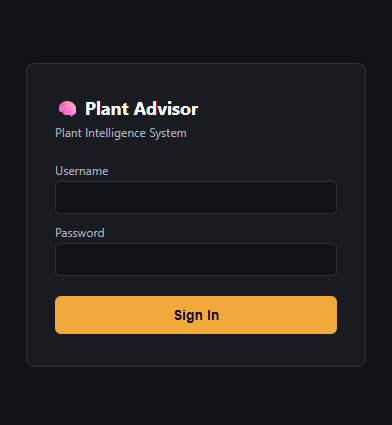
Sign in
Open the address your administrator gives you, something like http://plant-pc:3001, and sign in with your username and password.
- Works in any browser on the plant network, nothing to install.
- Your role decides what you see: operators ask questions and run Topics, administrators also manage settings and users.
Connect your SCADA database
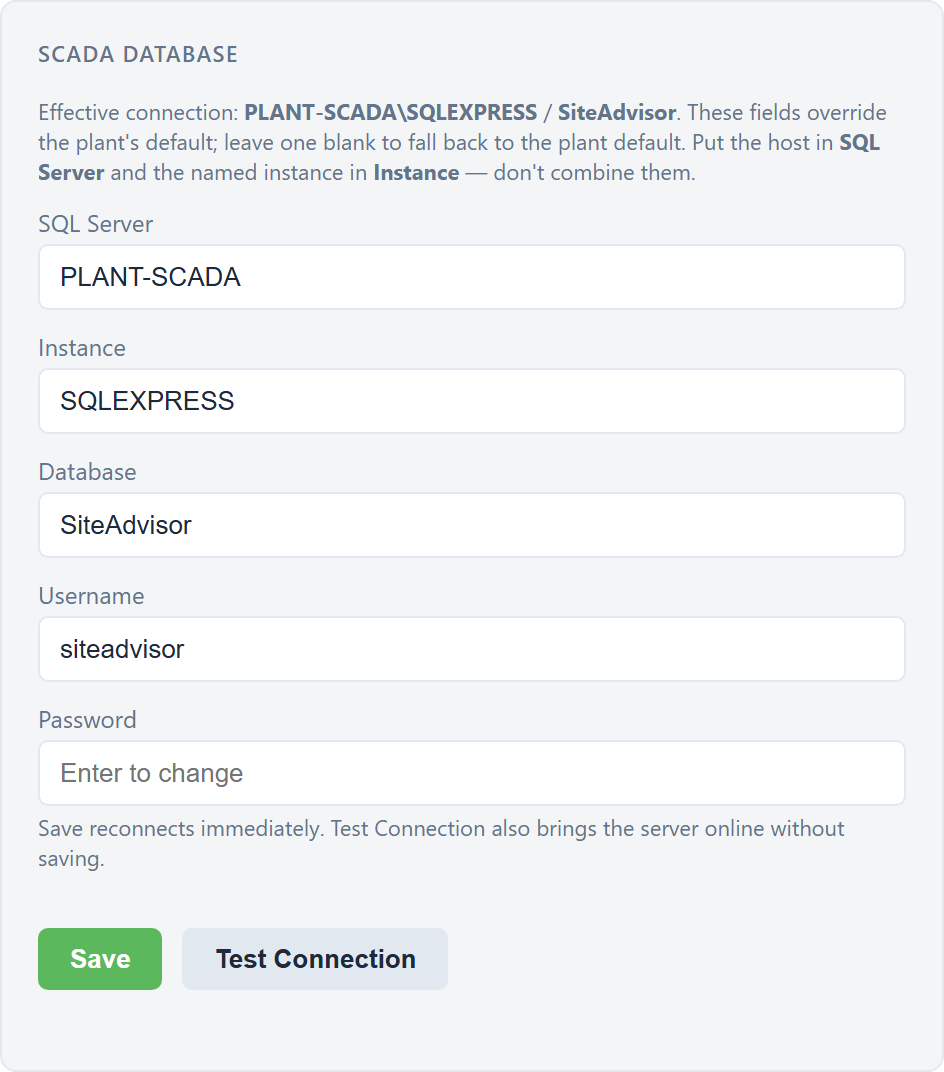
In Settings, point Plant Advisor at your historian: server, instance, database and login. Test Connection checks it is reachable before you save.
- Per-field overrides let you point at a different server without editing any files.
- The effective connection in use is shown at the top of the card and on the main screen.
- Read-only throughout: Plant Advisor can look, but never changes anything.
Add your AI key
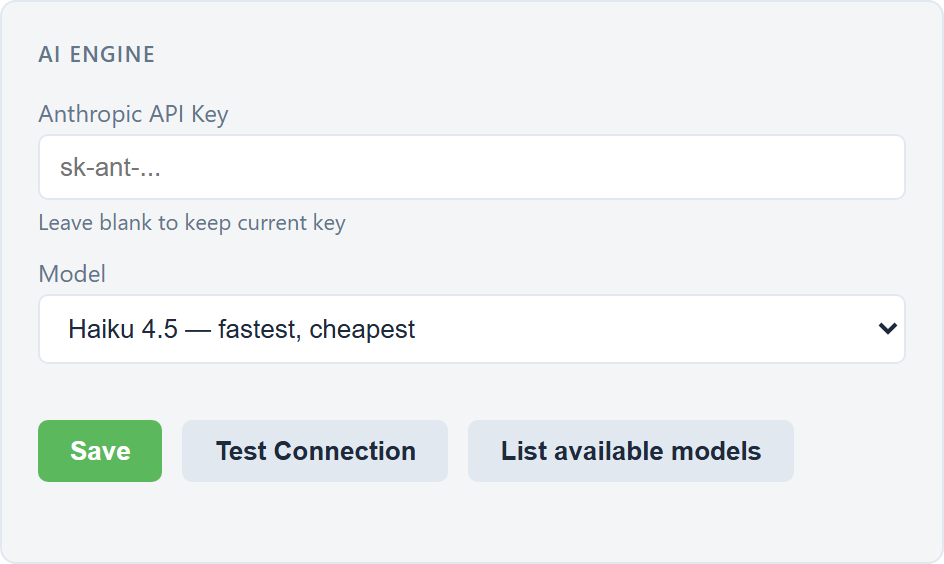
Plant Advisor uses Anthropic to write its plain-English answers and summaries. Paste your API key, choose a model, and use Test Connection to confirm it works.
- No key yet? You still get the full data reports, the written summaries are simply switched off.
Asking questions
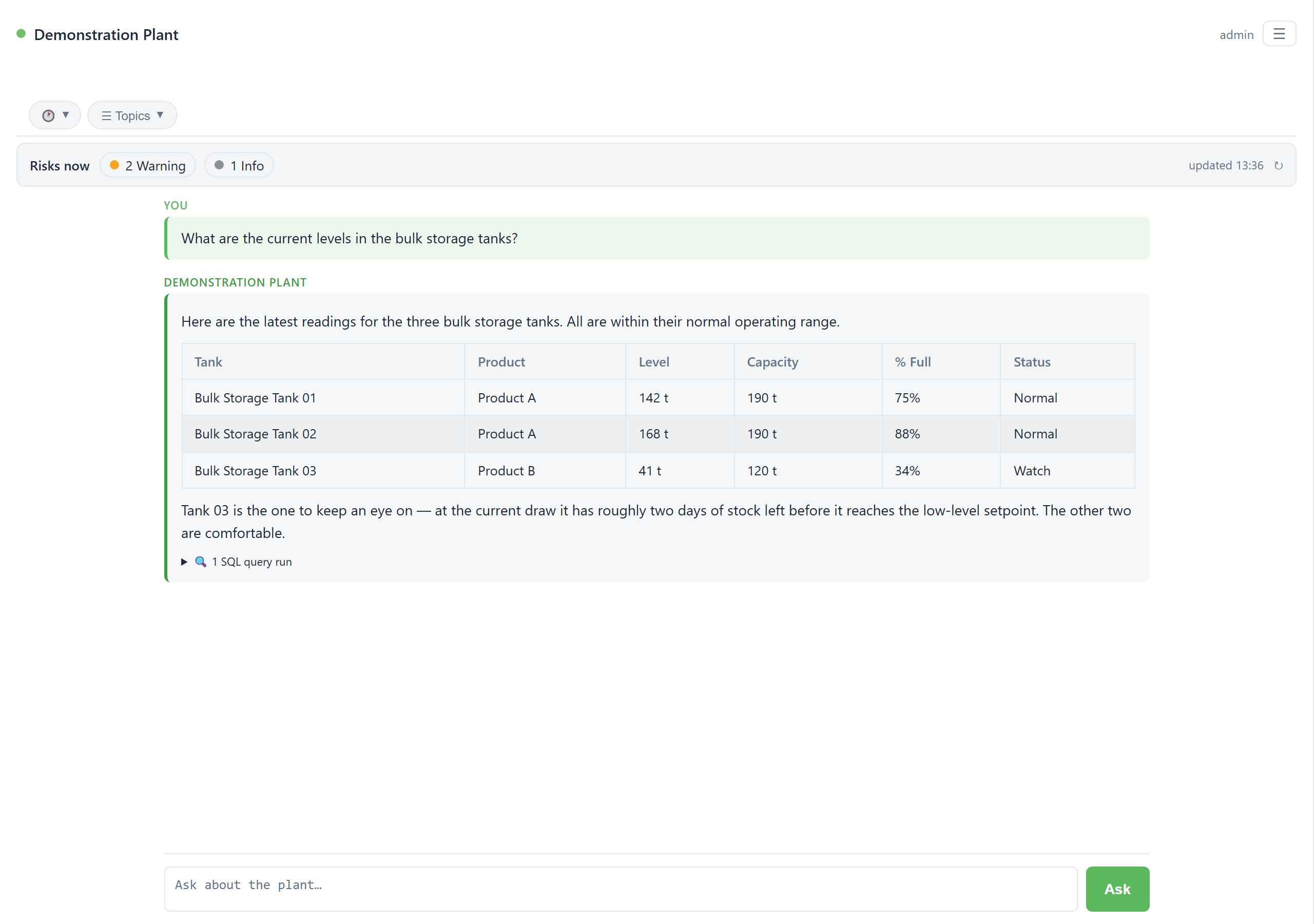
Type any question in the box at the bottom and press Ask or hit Enter. Plant Advisor queries your live database, analyses the result, and answers in natural language. You can expand the query details beneath each response to see exactly what data it pulled.
- Every answer lists the queries it used, so any figure traces back to source.
- Older periods are found and read from the archive automatically.
- Ask about alarms, tank levels, running programs, trends: anything logged at site.
Topics
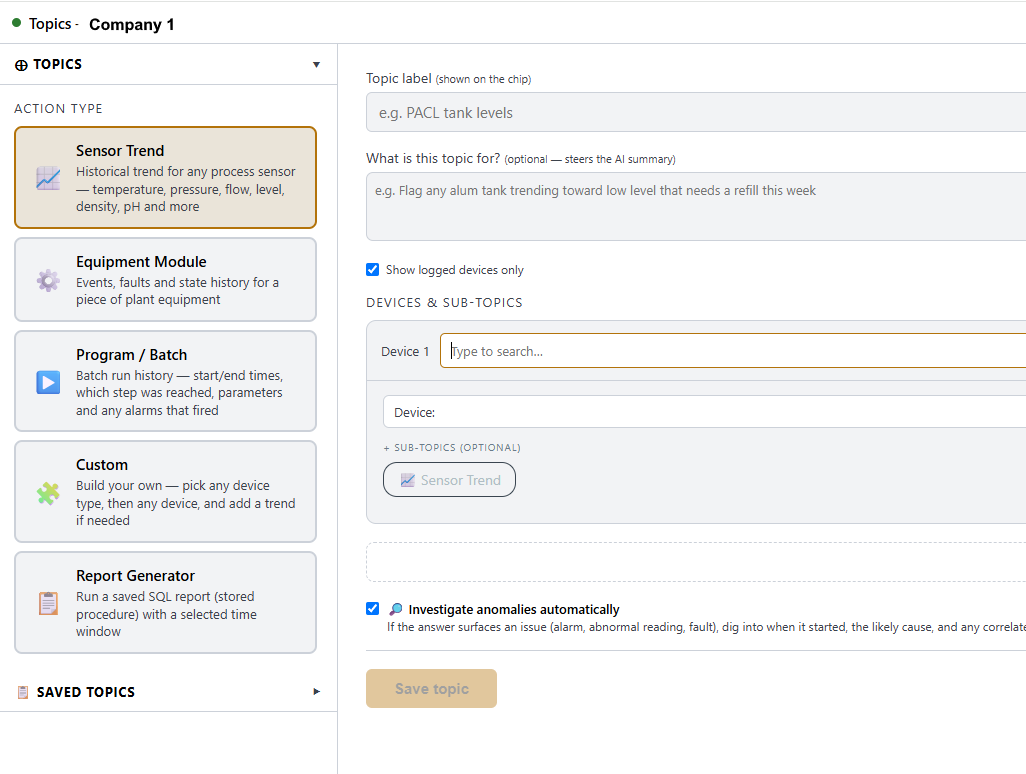
If you ask the same thing every shift, build it once as a Topic and run it any time you need it. Either let the AI build your Topic for you via the chat, or build the Topic manually by choosing an action type, adding the devices to cover, and giving it a recognisable name.
- Produce a consistent, repeatable report, the underlying numbers are always pulled fresh and rendered the same way every time.
- Optionally with a short AI-written summary on top.
Server engine: analysis on a schedule
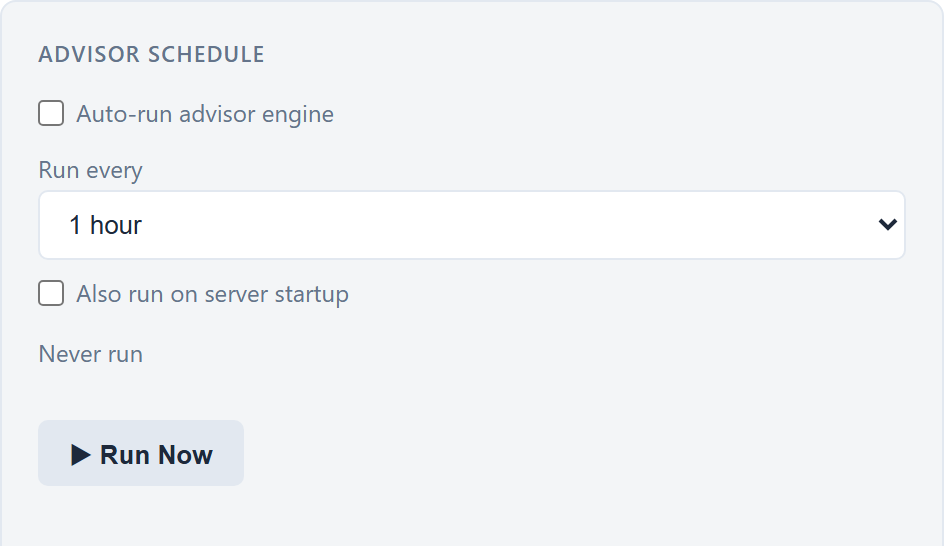
Switch on the server engine and Plant Advisor reviews recent plant data on a schedule, writing recommendations, forecasts and summaries without anyone having to ask first.
- Set how often it runs, and optionally run once on server startup.
- Results surface in the chat assistant and in the Risks Now feed.
Golden Batch: objective run grading.
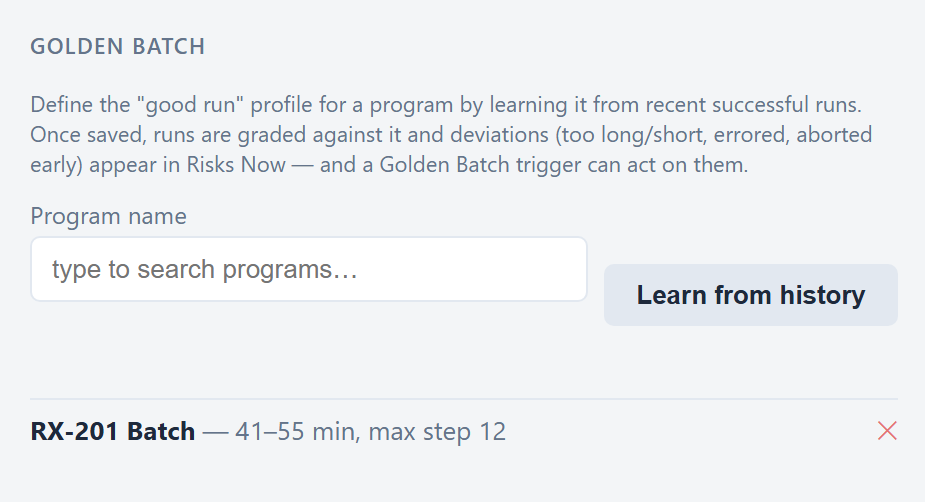
A Golden Batch is the profile of a good run: how long it should take and the step it should reach. Plant Advisor learns it from your own history, then grades every later run against it, the same way each time.
Learn a profile
Pick a program and choose Learn from history. Plant Advisor reviews recent successful runs and proposes an expected duration window and the highest step reached. Review it, adjust if you need to, and save.
Grade every run
When a run finishes it is compared with the saved profile. Anything that runs too long or too short, ends in error, or stops before the expected step is flagged as a deviation.
- Deviations appear in the Risks Now feed, ranked by importance.
- A Golden Batch trigger can act on a breach automatically.
Consistency you can stand over.
Because the profile and the grading are fixed, every run is judged on the same terms. That gives you a repeatable, objective read on how a process performed, run after run.
Risks Now and event triggers
Risks Now is a single prioritised list of what needs attention: it pulls together the engine’s recommendations, readings that have drifted outside their normal range, and anything raised by Golden Batch grading, ranked Critical, Warning or Information.
- Event triggers watch for an alarm or a Golden Batch breach and run an action: run the engine, run a Topic, or snapshot a query.
- Debounce and hourly limits stop a burst of the same alarm firing an action over and over.